Facelessvideo

Plain-language guide

What Is Faceless Video Generator Free in Practice?

If you are asking what is faceless video generator free, you are likely looking for a way to make videos without appearing on camera or paying to begin. A faceless video generator helps assemble a script, visuals, narration, captions or music into a video; whether any particular service offers free access, and what that access includes, depends on its terms.

Faceless video creation imagery

The one-line definition

A faceless video generator is a creation workflow that puts the subject on screen instead of the creator. It may use stock footage, illustrations, text or generated visuals, but the finished video still needs a clear point of view.

Three mechanisms behind a faceless video

Think of the faceless video generator as an assembly aid, not a substitute for deciding what the audience should learn or feel.

Build the message

Start with one audience question and write a short outline: opening hook, two or three useful points, and a closing thought. If a faceless video generator drafts the script, check every factual claim and remove lines that sound generic. The script determines whether the visuals support an idea or merely fill time.

Match sound and visuals

Pair each script beat with footage, graphics, screen recordings or on-screen text that explains it. Narration can be recorded or generated, depending on the workflow. A faceless video generator may suggest assets, but you still need to check relevance, permission to use them, pronunciation and whether captions match the spoken words.

Review the assembled draft

Watch the whole video with sound, then again with sound off. Check that the pacing leaves enough time to read text, that cuts do not obscure the point, and that the ending fits the opening promise. Before exporting from a faceless video generator, inspect the available format and any access conditions.

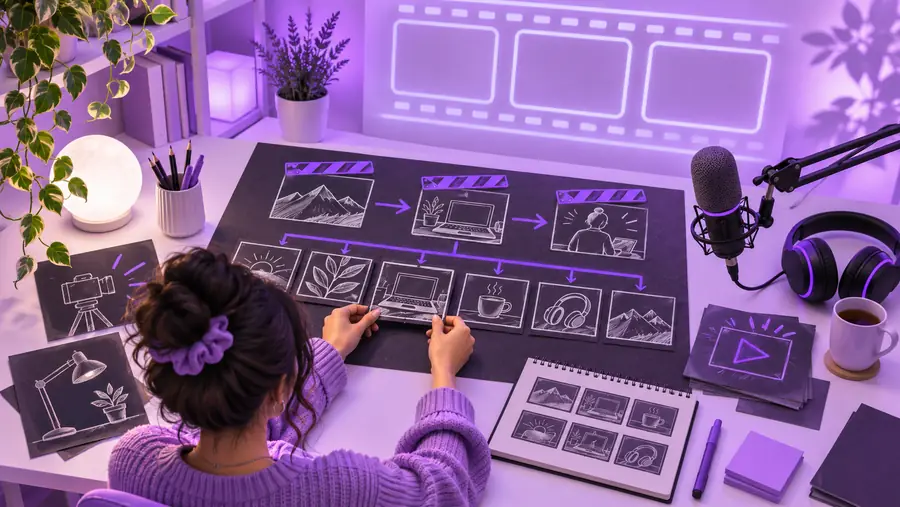
Step-by-step, from outline to visual draft

The useful change is not simply adding pictures. It is making every scene carry part of the explanation.

Plan the sequence

Illustrative storyboard image representing a planned sequence
Illustrative faceless-video image representing a visual draft
Review the draft

These images illustrate planning and review; they do not document a before-and-after result from a particular tool. A faceless video generator can help bridge the stages, but the creator must judge whether the scenes communicate the intended message.

Limits and edge cases to check

Free is an access description, not a quality guarantee. Compare the actual workflow and export terms rather than assuming every faceless video generator works the same way.

Generator-assisted workflow Manual editing workflow
1

Starting material

Generator-assisted workflow

May begin with a topic, prompt or script; the available inputs depend on the tool.

Manual editing workflow

Begins with assets and a script you gather or create yourself.

2

Visual selection

Generator-assisted workflow

May propose scenes quickly, though suggested footage can be too literal or unrelated.

Manual editing workflow

You select each asset, which takes more work but gives direct control.

3

Narration

Generator-assisted workflow

Some tools offer generated speech; voice choices and usage terms vary.

Manual editing workflow

You record your voice or source audio separately and edit it into place.

4

Captions

Generator-assisted workflow

Automatic captions, where offered, still need spelling and timing checks.

Manual editing workflow

You write or import captions and check their timing in the editor.

5

Free access

Generator-assisted workflow

A free option may restrict exports, duration, resolution, features or reuse; verify current terms.

Manual editing workflow

Editing costs depend on the software, assets and equipment you choose.

6

Rights and accuracy

Generator-assisted workflow

The creator remains responsible for claims and for checking asset and voice permissions.

Manual editing workflow

The same responsibility applies even when every edit is made by hand.

7

Best fit

Generator-assisted workflow

Useful for testing an outline and assembling a first cut when its controls suit the project.

Manual editing workflow

Useful when precise visual choices or frame-by-frame control matter most.

Make the first draft deliberate

Start with a message worth showing

Bring a short outline and a clear audience to the creation process. Use Facelessvideo to explore a faceless video generator workflow, then judge the resulting draft against your script and the applicable export terms rather than treating automation as a final review.

  • Define the audience question first
  • Check visuals against each script beat
  • Review terms before publishing

Questions about free faceless video generators

The phrase usually refers to a tool for making videos without showing the creator's face that also offers some form of free access. It does not specify which features or exports are included. Read the current terms of the particular faceless video generator before planning a project around them.

Yes, a video can communicate through on-screen text, music and visuals, or through generated narration where a tool offers it. The choice should suit the audience and subject. If you use generated speech, listen for mispronunciations and confirm the voice's usage terms.

Not necessarily. A free tier may have separate rules for editing, exporting and using the finished video. Check those rules, along with the permissions for any footage, music, images and voices in your draft, before publishing.

Write the audience question, a brief outline and the key facts you need to verify. Note any required visuals and decide whether narration or captions will carry the explanation. This preparation makes it easier to spot irrelevant scenes in an assembled draft.

Treat its output as a draft until you have watched it from beginning to end. Check accuracy, pacing, captions, audio levels and whether each visual supports the script. Also confirm the export and usage conditions that apply to the finished file.

Create a video
Create a video